 2Q Solutions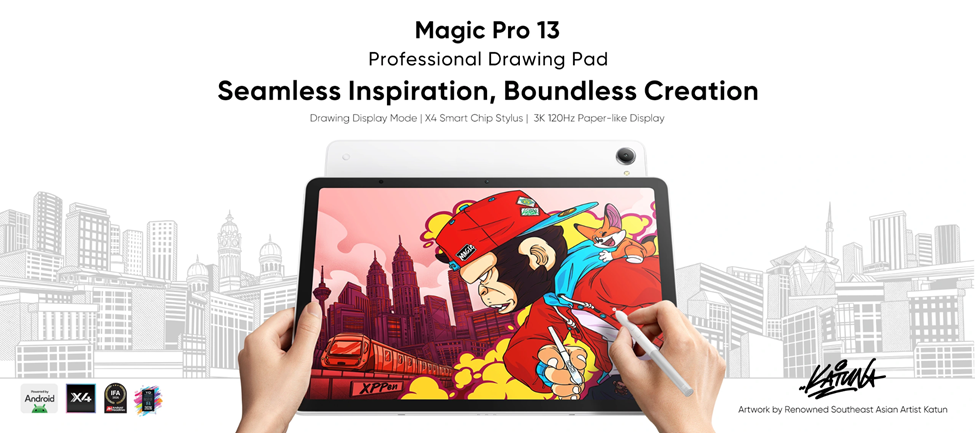
The dynamic relationship between portable digital screens and desktop workstation computers forms the cornerstone of today’s digital illustration and design studios. While desktop computer systems supply the raw processing horsepower and graphic card memory needed for complex multi-layer rendering, high-resolution textures, and heavy graphics software, touchscreen tablets provide direct-on-screen drawing controls that standard mouse inputs or non-screen graphics tablets cannot match. Learning how to use iPad as a drawing tablet for pc allows digital artists, animators, and concept creators to link these systems together seamlessly. This integration unifies full desktop creative software pipelines with intuitive real-time pen input directly on display panels. Whether a creator relies primarily on traditional mobile setups or explores versatile options like the best Android standalone drawing tablet for on-the-go sketching, establishing a stable, low-latency display and input bridge between screen hardware and a desktop PC is crucial for maintaining professional creative productivity.
1. Understanding Connectivity Protocols: Wireless Wi-Fi vs. Wired USB
To successfully use iPad as a drawing tablet for pc, creators must evaluate the technical differences between display signal transmission protocols. Sending high-resolution computer monitor signals and continuous digitizer coordinates from a desktop PC to an external screen demands substantial data bandwidth, especially when driving modern drawing software at elevated frame rates and high pixel densities.
Wireless Mirroring via Local Networks (Wi-Fi 5 and Wi-Fi 6)
Software-based wireless setups convert the host computer display output into a compressed video signal using modern codecs such as H.264 or H.265. This live video stream passes through local wireless routers before appearing in the tablet’s client app. Although a cable-free setup allows greater freedom of movement around the studio, network congestion, packet loss, and Wi-Fi interference can introduce 15–45 milliseconds of input latency. This lag manifests as micro-stuttering, missed pressure points, and subtle frame drops during rapid hatching, smooth shading, or quick pen strokes.
Direct Physical USB Cable Connections (USB 3.0 and USB 3.2 Gen 2)
Physical USB cables bypass local network traffic completely. Wired connections utilize hardware acceleration over data transfer bandwidths reaching up to 10 Gbps, maintaining steady 60Hz or higher image updates without video compression artifacts. For precision vector paths, clean line art, and fine-line detailing, a direct physical cable link remains the reliable standard for instantaneous pen response and uninterrupted digitizer tracking.
2. Step-by-Step Setup Guide to Use iPad as a Drawing Tablet for PC
Configuring a desktop PC running Windows to accept external tablet input requires installing driver server software on the host PC and a companion app on the mobile device to map digitizer touch coordinates correctly.
Step 1: Host Driver and Client Application Installation
Download and install a certified screen-extension driver program (such as Duet Display, Astropad Project Blue, or EasyCanvas) on your desktop PC.
Download the matching companion client app from the App Store onto your tablet device.
Launch Windows Device Manager on your PC to confirm that the operating system recognizes virtual display adapters and digital tablet input drivers without configuration conflicts.
Step 2: Cable Pairing, Display Modes, and Screen Scaling
Connect the tablet to your PC using a high-speed USB-C cable certified for at least 5 Gbps data transfer rates.
Launch the desktop host software and set the display mode to “Extended Display” rather than simple screen mirroring. This process maintains your primary monitor’s original aspect ratio and avoids letterboxing.
Access Windows Display Settings, locate the newly detected virtual monitor, and adjust the scaling slider to match the physical tablet screen size. Aligning these settings prevents stretched canvas viewports and skewed brush stroke trajectories.
Step 3: Digitizer Calibration, Windows Ink, and Pressure Routing
Access the host software preferences and enable Windows Ink pressure passthrough. This allows raw pen pressure values to communicate directly with brush engine APIs inside programs like Adobe Photoshop, Corel Painter, or Clip Studio Paint.
Run the pen-tip calibration wizard within the client software to correct coordinate mapping and eliminate visual parallax caused by the top cover glass gap.
3. Optimizing Brush Latency, Pressure Profiles, and Color Accuracy
Once physical connections and basic screen extensions are active, fine-tuning input parameters converts a standard secondary screen into a highly responsive, professional-grade digital canvas.
Pressure Curve Customization
Windows operating systems process stylus inputs through WinTab or RealTimeStylus APIs. Adjusting response curves within host driver control panels ensures subtle light strokes register reliably without breaking, while preventing firm strokes from hitting maximum line thickness too early.
Color Space Synchronization
Mobile screen panels are frequently manufactured to meet wide color gamuts such as DCI-P3 or sRGB. When configuring your workflow to use iPad as a drawing tablet for pc, align your PC painting application’s working color profile (such as sRGB IEC61966-2.1) with your target tablet display panel capabilities. This synchronization prevents dramatic color shifts and hue clipping when transferring work between devices or exporting final production files.
Refresh Rates and Dynamic Stroke Tracking
Drawing on standard 60Hz screens can cause slight visual delays where the digital ink line appears to drag a few millimeters behind the moving stylus tip. Panels capable of 90Hz or 120Hz refresh rates dramatically reduce this visual separation, allowing digital strokes to follow pen movements with fluid, natural immediacy.
4. Advanced Hardware Integration: The Hardware Drawing Display Mode Paradigm
While software streaming solutions offer a practical route to use iPad as a drawing tablet for pc, encoding visual signals via background software inevitably consumes noticeable CPU and GPU rendering power on the host computer. This background processing overhead can introduce visual compression noise, frame dropouts, and input lag. Artists who require exact line control and maximum hardware stability without software driver overhead are turning toward hardware-level dual-mode systems.
A standout development in this hardware category is the XPPen Magic Pro 13 standalone drawing Pad. Functioning as a high-performance independent mobile device powered by Android 16, a flagship 4nm MediaTek Dimensity 8300 processor, 8GB RAM, 256GB internal storage (expandable up to 2TB via Micro SD), and a massive 10,200mAh battery supporting 45W PD fast charging, this device introduces an innovative hardware feature known as Drawing Display Mode.
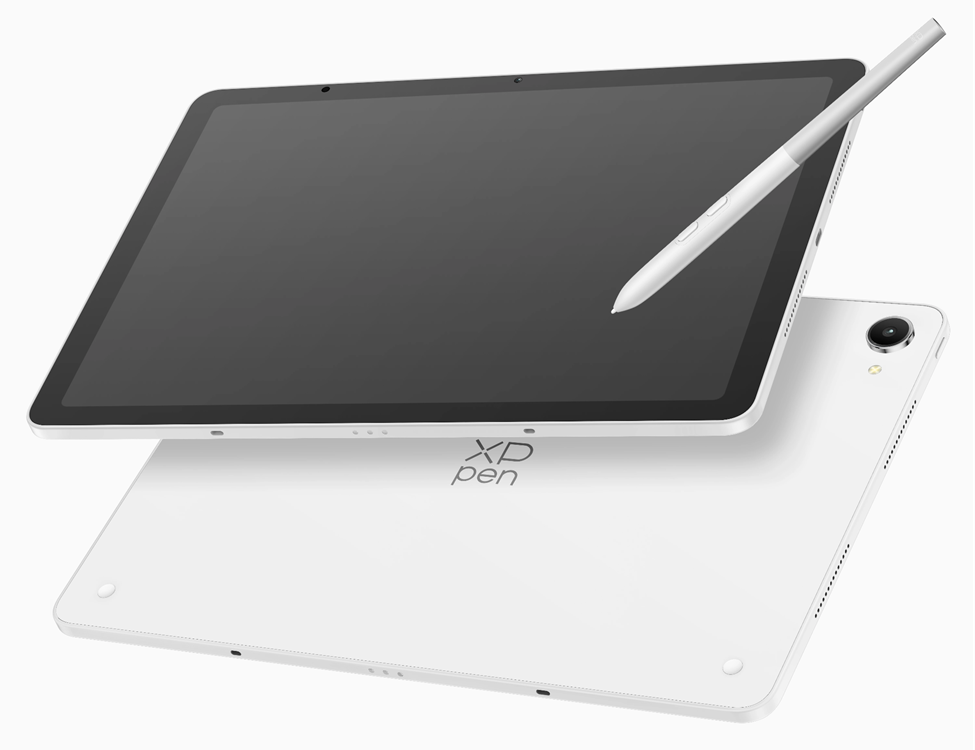
Unlike software streaming wrappers that depend on host CPU video compression and driver translation, Drawing Display Mode operates over built-in hardware DP-IN (DisplayPort Input) signal architecture through a single full-featured USB-C cable. Connecting the cable directly between the device and a PC transforms the standalone unit into a dedicated professional desktop drawing display instantly:
| Feature Dimension | Hardware Specifications | Drawing Display Mode Performance Advantage |
| Display Panel & Visuals | • 3K Resolution (3096 x 2064) • 120Hz Refresh Rate (3:2 Ratio) • 100% sRGB & 96% DCI-P3 Color Gamut • 650 nits Peak Brightness | Receives raw, uncompressed video signals directly from the host PC GPU. Delivers zero visual compression noise, sharp details, and fluid frame updates without lag. |
| Screen Surface Tech | • AG (Anti-Glare) Nano-etched Glass • AF (Anti-Fingerprint) Coating • TÜV SÜD Low Blue Light Certified | Cuts reflective glare under bright studio light while offering a tactile, paper-like surface texture for optimal friction under the pen tip. |
| Stylus & Digitizer | • X4 Smart Chip Stylus Architecture • 16,384 (16K) Pressure Sensitivity Levels • 2g Initial Activation Force (IAF) • 60° Tilt Support & 0.3mm Tip Travel | Digitizer metrics bypass background software driver layers. Transmits raw pressure, tilt, and location coordinates directly to Windows brush engines with near-zero latency. |
For digital illustrators, animators, and concept designers who split time between outdoor field sketching and studio desktop work, dedicated hardware dual-mode setups resolve traditional software driver conflicts while maintaining uncompromising color accuracy and instant pen response.
5. Building an Efficient Cross-Platform Production Workflow
Structuring a organized multi-device workflow speeds up project turnaround times, whether using software streaming bridges or dual-mode hardware drawing screens.
Mobile Conceptualization and Ideation
Portable mobile creative apps during field travel or client meetings to sketch quick thumbnails, capture color palettes, and assemble visual mood boards. Built-in inspiration apps like “Shelf” allow instant asset tagging, direct notes, and smart visual searching across stored creative assets.
Workstation Cable Integration
Upon returning to your desk workspace, connect your tablet to the desktop PC using a single high-speed cable and activate Drawing Display Mode. Open host graphics software like Photoshop, ZBrush, or Clip Studio Paint to transition directly into high-resolution work without manual file transfers.
Desktop Hardware Refinement and Rendering
Leverage your desktop PC’s powerful GPU for heavy multi-layer compositing, complex 3D texturing, dynamic lighting calculations, and final color checks under calibrated color profiles prior to client delivery.
Hardware Setup Checklist for PC Integration
To maintain a reliable workspace when connecting mobile screens to a PC, keep this configuration checklist in mind:
Use high-bandwidth USB-C 3.2 cables over wireless connections whenever working on precision line art or detailed brush work.
Verify display aspect ratio matching across monitors to avoid stretched canvases or distorted brush stroke geometry.
Calibrate stylus initial activation thresholds within driver settings so light pen contacts register reliably down to 2g of pressure force.
Consider hardware-level dual-mode devices featuring Drawing Display Mode to eliminate software encoding background lag while maintaining native 3K resolution and fluid 120Hz display performance.
Conclusion
Bridging mobile flexibility with desktop computing power is no longer limited to high-end multi-monitor studios. Learning how to use iPad as a drawing tablet for pc via streaming drivers allows creators to quickly adapt portable slates for desktop software. However, software streaming often suffers from video compression noise, CPU lag, and input delay under heavy workloads. Whether you need the best Android standalone drawing tablet for field sketching or a high-performance desktop display, hardware dual-mode setups like the Drawing Display Mode on the XPPen Magic Pro 13 standalone drawing Pad represent the future of digital art tools. By combining native 120Hz uncompressed display performance with low-latency pen tracking over a single USB-C cable, artists can effortlessly unify mobile freedom with professional desktop power.