 IQnewswire
A Mac that will not boot is one of the most stressful situations in computing. The screen stays dark, the startup chime plays or does not, and everything you have on the drive – documents, photos, projects – feels locked away. The critical thing to know: your data is almost certainly still on the drive. The system failed to start, not the storage.
Here is how to recover data from a crashed or unbootable Mac, step by step.
# Why a Crashed Mac Still Holds Your Data
An unbootable Mac usually means one of these:
- System corruption. macOS files are damaged, but your data is intact.
- Failed update. An interrupted OS update left the system unbootable.
- Hardware issue. A component fails, but the drive (or SSD) still holds data.
- Disk damage. The file system is corrupted, but the raw data survives.
In nearly every case, the files you created are physically on the storage. The problem is access: the system that reads them will not start. Recovery means getting at the storage another way.
Method 1 – Try macOS Recovery Mode First
Before anything else, try Apple’s built-in recovery:
1. Restart the Mac and hold Command + R during startup.
2. This loads macOS Recovery – a separate boot environment.
3. From here, you can use Disk Utility to check the drive, or restore from a Time Machine backup.
If macOS Recovery loads, your drive is likely fine – you may be able to restore or repair and boot normally.
Method 2 – Use Bootable Media Recovery
If the Mac will not boot into recovery, the reliable path is bootable media: create a bootable USB drive on another Mac, boot the crashed Mac from it, and recover your files.
Wondershare Recoverit supports this complete workflow. It is the same tool trusted across the Recoverit product family, which covers crash recovery on Windows, Mac.
Step 1 – Create a Bootable USB Drive
On a working Mac, open Recoverit and use the crash recovery tool to create a bootable USB drive (8GB or more).
Step 2 – Boot the Crashed Mac from the USB
Connect the USB to the crashed Mac, restart it, and hold the Option key during startup. Select the USB drive from the startup menu.
Step 3 – Scan and Recover
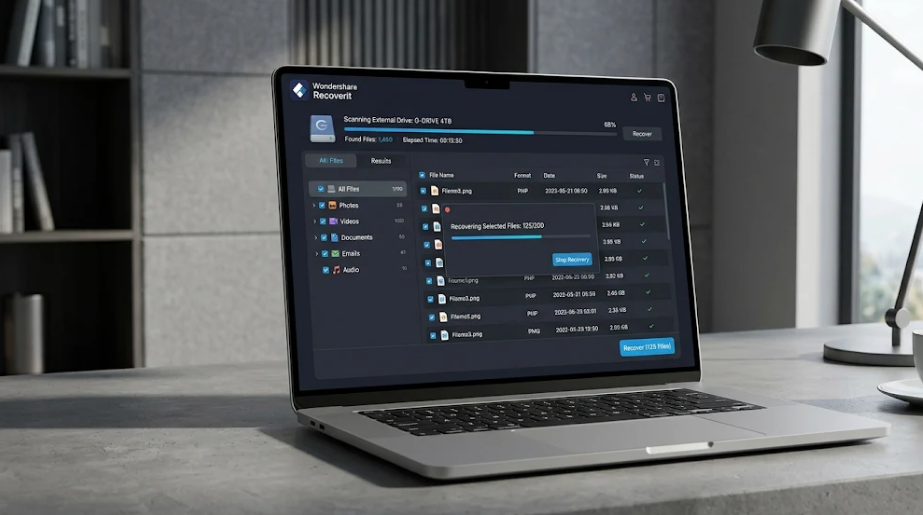
Once the Mac boots from the USB, Recoverit launches and scans the internal drive. Preview your files and recover them to an external drive.
This is the method that recovers data from Macs that will not start at all – the files are on the drive, and the bootable environment gives you the access you need. The crashed Mac recovery workflow covers this end to end.
Method 3 – Remove the Drive and Read It on Another Mac
For Macs with removable storage (older models or external drives), another option exists:
1. Power off the Mac and remove the drive carefully.
2. Connect it to a working Mac via an enclosure or dock.
3. Scan it with recovery software to recover your files.
This bypasses the crashed system entirely – you are reading the storage directly. For modern Macs with soldered SSDs, the bootable USB method above is the equivalent.
What If the Drive Is Physically Damaged?
If the drive clicks, makes grinding noises, or the Mac detects no storage at all, stop DIY attempts. Physical damage needs professional recovery services with clean-room equipment. Attempting to read a failing drive yourself can push it past the point of recovery.
Preventing a Data Emergency
- Enable Time Machine. If your Mac crashes, a backup from before the crash is the fastest recovery.
- Keep regular backups. Time Machine plus an offsite copy (cloud or another drive) covers most scenarios.
- Update macOS deliberately. Interrupted updates are a common crash cause; update when you have time and power.
- Know your recovery path. Test bootable media recovery before you need it.
Conclusion
A crashed or unbootable Mac is frightening, but your data is almost always still on the drive – the system failed, not the storage. Try macOS Recovery, create bootable media with recovery software, or read the drive directly from another Mac. With Wondershare Recoverit, you can recover data from a crashed Mac even when the Mac will not boot. The crash was the system’s failure; your files do not have to be lost with it.